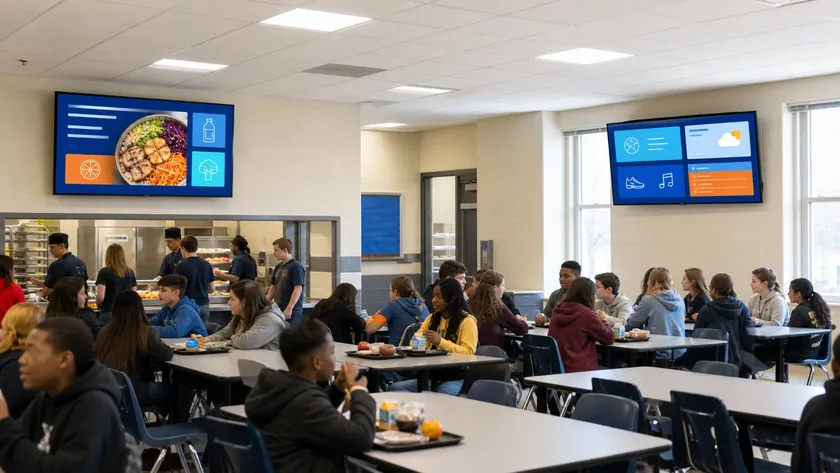
01Design for the serving line
Start with the meal being served, the date, the main choices and the information a student needs before reaching the counter. Keep type large, contrast clear and decorative motion away from essential menu text. A distant screen should not require a student to wait through a long rotation to discover today’s entree. Test readability from the back of the actual line.
02Keep an approved menu source
Choose the nutrition team’s approved menu as the source of truth and identify who can authorize changes. Use a school-approved design, uploaded media or a supported presentation source in Cast. This workflow does not imply a direct connection to your food-service system or automatic nutrition-data import. Verify any proposed integration separately before relying on it.
03Build a small reusable menu layout
Give the layout separate areas for the date, meal, main choices, sides and a short approved notice. Keep the hierarchy consistent so daily updates change the food rather than the whole design. If you use Google Slides or Canva, keep one clearly named authoritative presentation and check its published viewing permissions on the intended receiver.
04Make substitutions a deliberate update
When a delivery or availability change affects the meal, have the authorized owner update the source, check the displayed date and verify the replacement on a real screen. Do not assume a saved edit is already visible everywhere. Keep a practical fallback, such as a printed notice approved by nutrition services, for the period before the digital update is confirmed.
05Handle nutrition and allergy information carefully
Display only information reviewed by the responsible nutrition staff. Do not infer ingredients, allergen status or dietary suitability from an image or recipe name. A screen should not replace the district’s required notices, staff guidance or accessible menu alternatives. Make sure any link to detailed information is current and that families can use it without scanning a code.
06Plan the school day, then verify it
Check breakfast and lunch periods, building time zone, holidays, early releases and the next date the content will appear. Preview the entire playlist, not just the menu slide. Confirm that urgent notices or other scheduled content do not make the menu unreadable during service. Review the screen again when changing the timetable.
07Use a short daily opening check
Before service, confirm the date, meal, choices, approved notice and readability on each distinct screen setup. Record who can make a correction and who handles a failed player. At closing, prepare the next approved menu and remove obsolete notices. This operating routine matters more than adding extra animation or filling every corner of the display.